

Every Web X Design Studio account uses two factor authentication as standard. That means logging in needs both your password and a time-based code from an app on your phone, which changes every 30 seconds. We recommend Microsoft Authenticator, available for both iOS and Android.

Setting up 2FA
- Click the login link in your Login Details email
- Enter and save a new password
- Log in to the site
- Click ‘Configure 2FA’ on your dashboard
- Open Microsoft Authenticator and choose to add a new account
- Select ‘Other account’
- Scan the QR code shown on screen
- You will see a confirmation message once it is linked
- Download and store your recovery codes somewhere safe
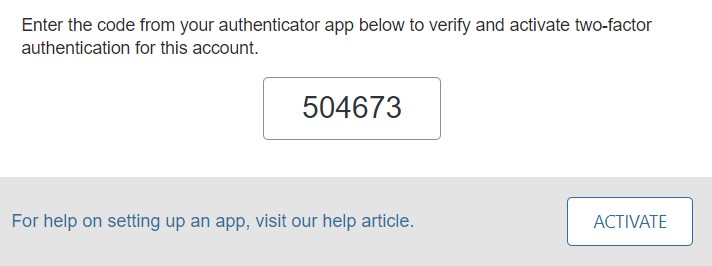
- Enter the 6-digit code shown in the app and click ‘Activate’
- You will see a confirmation that setup is complete
- 2FA is now active on your account
Logging in once 2FA is active
- Enter your username and password as usual, then click Log In
- On the next screen, enter the current 6-digit code from your authenticator app
Keep your recovery codes somewhere safe. If you ever lose access to your authenticator app, they are the only way back into your account without contacting us directly.