

Once your mailbox is set up, you can connect it to whichever email app you prefer using IMAP. This guide covers the settings you need and walks through the most common apps.
Key email settings
- Username: your full email address
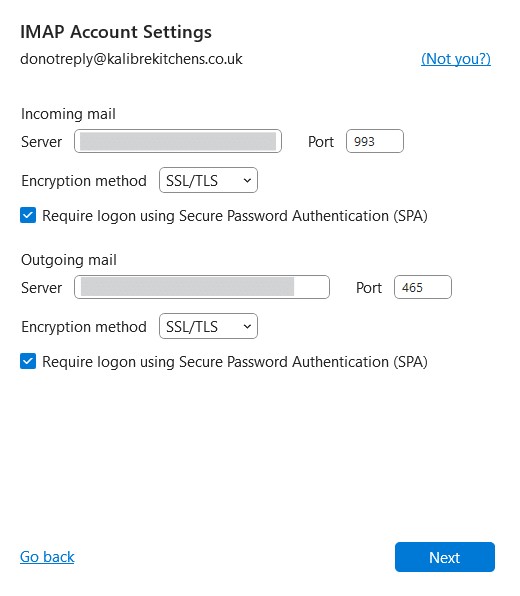
- Incoming server (IMAP): mail.yourdomain.com, port 993, SSL/TLS
- Outgoing server (SMTP): mail.yourdomain.com, port 465, SSL/TLS
- Authentication is required for both incoming and outgoing mail
Microsoft Outlook
- Open Outlook and go to File > Account Settings > Add Account
- Enter your email address and choose Advanced Options
- Select ‘Let me set up my account manually’, then Connect
- Choose IMAP as the account type
- Enter the incoming server details above
- Enter the outgoing server details above
- Enter your username and password when prompted
- Test the connection and finish
Mozilla Thunderbird
- Open Account Settings and choose Add Mail Account
- Enter your name, email address and password
- Let Thunderbird auto-detect the settings, or adjust them manually to match the details above
- Set the incoming port to 993 (SSL/TLS) and outgoing to 465 (SSL/TLS)
- Re-test and confirm
Apple Mail (Mac)
- Go to Mail > Accounts > Add Account
- Choose ‘Other Mail Account’
- Enter your email address and password
- Configure the IMAP server on port 993 with SSL/TLS
- Configure the SMTP server on port 465 with SSL/TLS
- Enable authentication for both, then finish
Mobile devices
iOS: Settings > Mail > Accounts > Add Account > Other. Enter your details and configure the mail servers above with SSL enabled on ports 993 (IMAP) and 465 (SMTP).
Android: Open your email app, choose Add Account, then Manual Setup and IMAP. Configure the same servers, ports and SSL/TLS security.
Changing your password
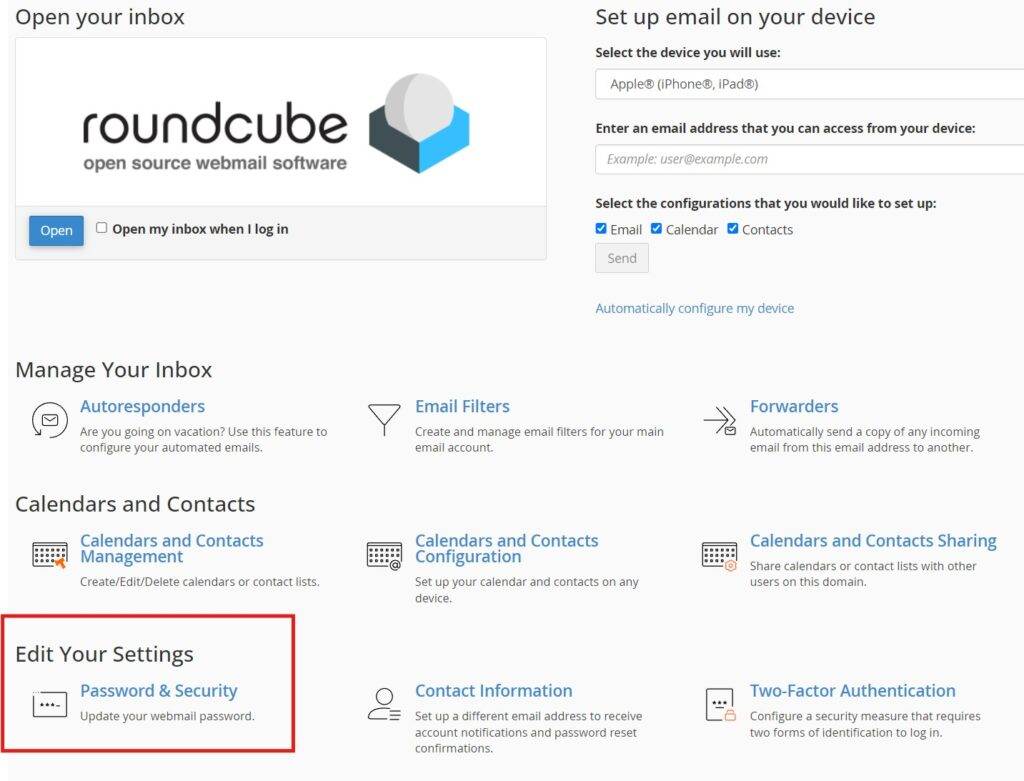
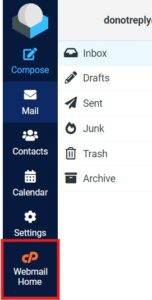
Log in to webmail.yourdomain.com and select ‘Password & Security’. If you land on the mailbox view first, click ‘Webmail Home’ to find the setting.
Troubleshooting
- Check you have a stable internet connection
- Double check the password has been entered correctly
- Confirm the port numbers and SSL/TLS settings match those above
- If problems persist, get in touch and we will help