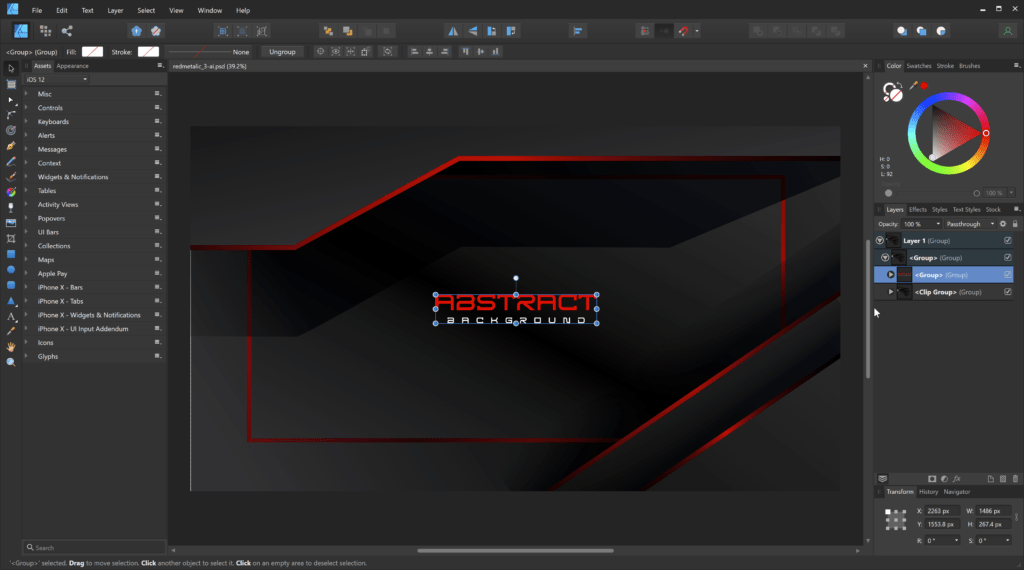
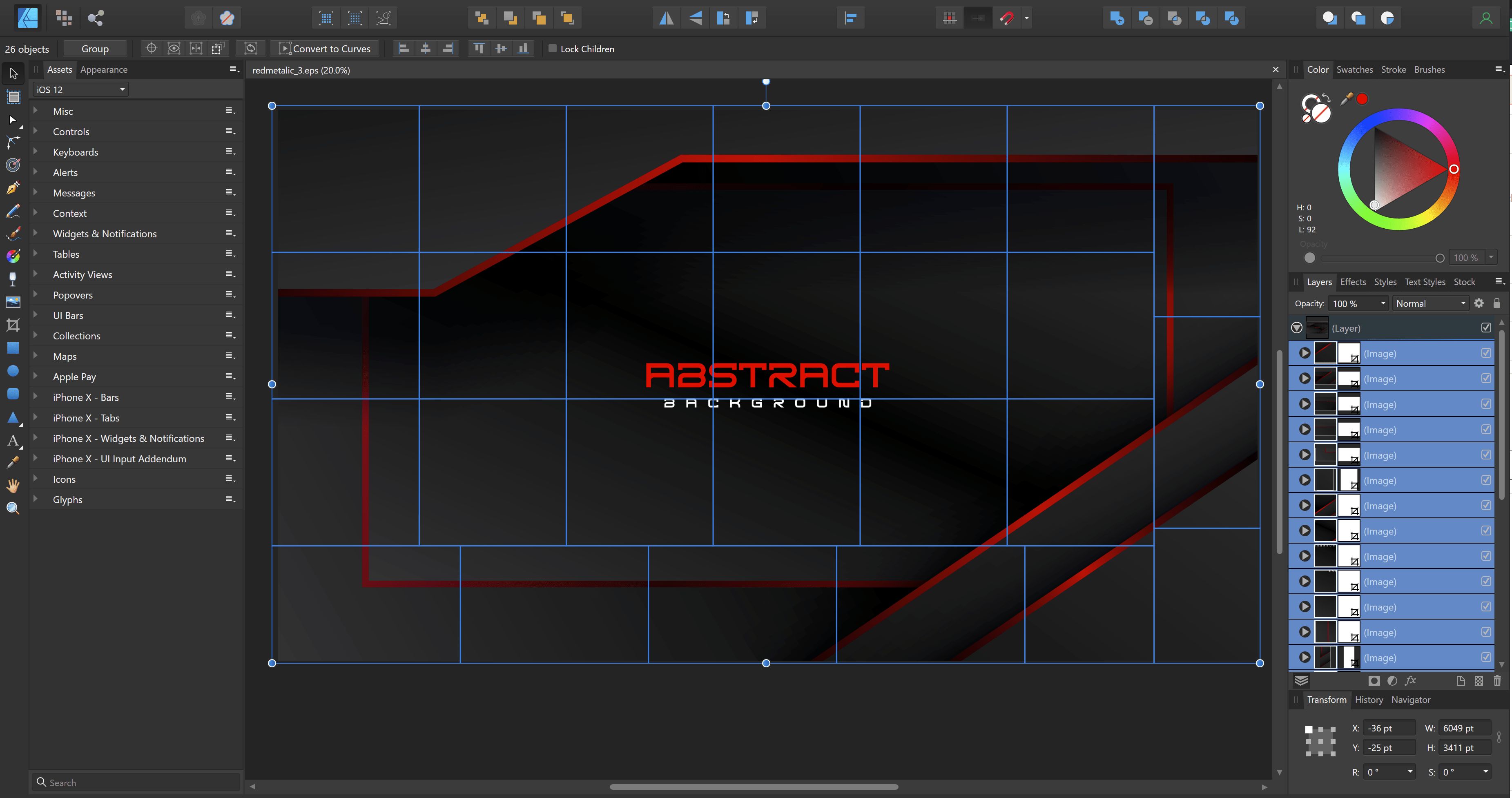
I subscribe to Freepik for premium images for use on my and on my clients’ website builds. Freepik provides a wide variety of high-quality vector images as well. My design tool is Affinity Designer, but if you try to open up the freepik .eps vector file directly, this is what it will look like:
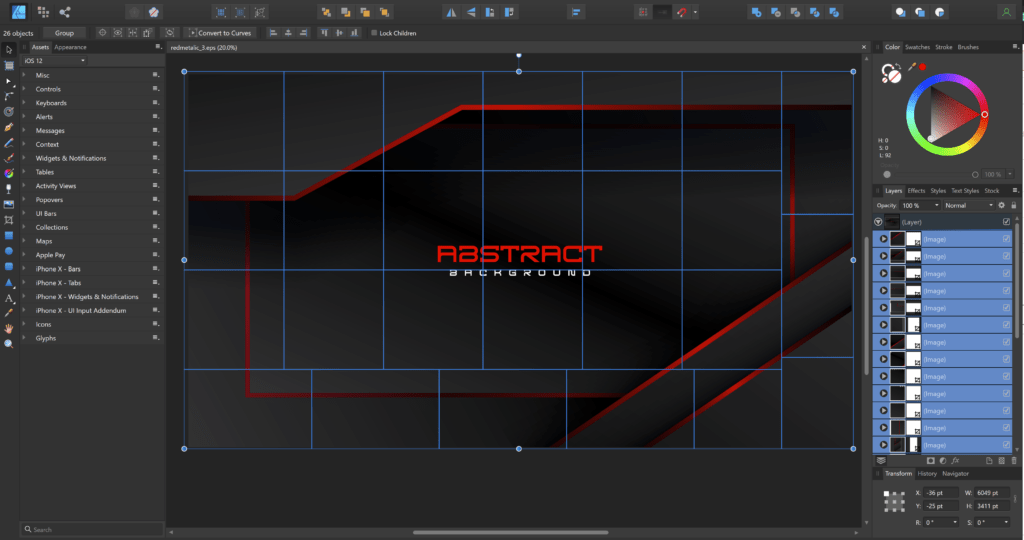
The vector is broken into a checkerboard and is impossible to edit. Freepik is adding some data to the vector file which doesn’t make it directly compatible with Affinity, but with an intermediary step, you can edit these correctly with Affinity.
The trick is to import them into Photopea and then export them as. Open the file in Photopea:
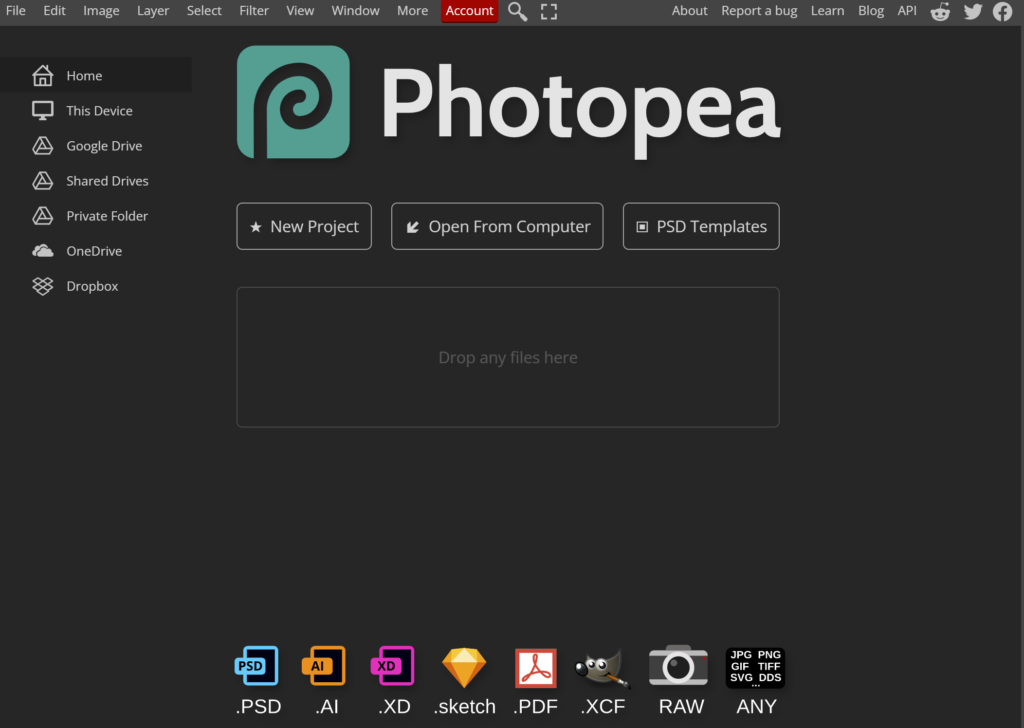
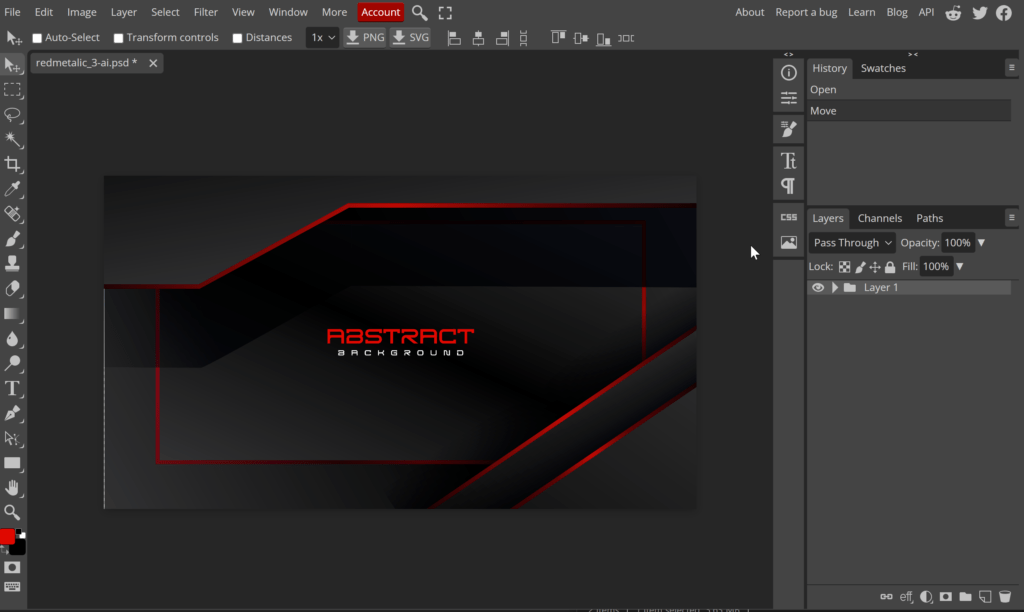
Now go to ‘File’ and ‘Save as PSD’. That’s all you need to do in Photopea. The .PSD file can now be opened in Affinity and edited as you would any other vector: